Clio and QuickBooks Integration for Law Firms: Trust Accounting Configuration
The Clio Manage - QuickBooks Online integration connects billing and practice-management data in Clio Manage with the accounting records maintained in QuickBooks Online. Depending on the settings you enable, Clio can sync approved bills, recorded payments, contacts, trust transactions, and certain expense data.
Trust transactions are supported by the current integration. Clio can export trust deposits, disbursements, and applied trust funds to QuickBooks Online, although the integration syncs at the account level rather than to QuickBooks subaccounts.
This article focuses on Clio Manage + QuickBooks Online. Clio Accounting is Clio's native accounting environment and is a different setup. That distinction matters when deciding whether QuickBooks Online will remain your firm's accounting system.
Clio Accounting
Last quarter, we inherited a QuickBooks file from a firm that had been running the Clio integration for eighteen months. The integration had been "working" - invoices synced, payments recorded, reports generated. But when we ran the three-way reconciliation, the trust liability account in QuickBooks showed thousands more than the sum of client balances in Clio. Eighteen months of trust payments had been crediting the wrong accounts, and no one caught it because the integration kept running without errors.
The Clio and QuickBooks integration connects your practice management system to your accounting software, syncing invoices, payments, and client data between the two platforms. It eliminates double-entry for operating transactions.
As a Clio Certified Partner, I have set up this integration for dozens of firms. Getting it right for a firm that handles client funds takes actual thought.
How Do I Set Up Clio with QuickBooks Online for My Law Firm?
You connect Clio Manage to QuickBooks Online under Settings → Bill Syncing → Connect to QuickBooks. But the connection itself is only one part of the setup. Before turning on the sync, the QuickBooks chart of accounts, Products and Services, bank accounts, and trust accounts should already be structured for the firm's bookkeeping workflow.
For approved bills and recorded payments, Clio items are matched to QuickBooks Products and Services, which then point to the appropriate accounts in the QuickBooks chart of accounts. Once bill syncing is enabled, approved bills and associated contacts sync automatically. Clio currently states that contacts and bills sync every 30–60 minutes, and updates to connected contacts are bidirectional.
Trust accounting is configured separately. If Export trust transactions and check printing is enabled, the firm selects the corresponding QuickBooks trust bank account and trust liability account for each connected Clio trust account. Clio can then export trust deposits, disbursements, and applied trust funds to those selected accounts. The integration works at the account level rather than populating client-level QuickBooks trust-liability subaccounts.
The Clio integration itself does not require or populate client-level QuickBooks trust-liability subaccounts. Whether a firm uses client-level QBO subaccounts should be based on its accounting workflow and applicable trust-recordkeeping requirements.
Before activating the integration on an existing QuickBooks file, pay particular attention to the sync start dates and existing transactions. If invoices, payments, or trust activity are already recorded in QBO, an incorrect starting point can create duplicate or conflicting records. The same issue can occur when a transaction exported from Clio is manually entered again through the QuickBooks bank feed instead of being matched to the existing transaction.
Clio currently supports QuickBooks Online Essentials, Plus, and Advanced. Simple Start is not supported. Essentials can be used with the integration but does not support the timekeeper or hard-cost import features.
This is also why Clio–QuickBooks setup is more than connecting two apps. The software can move configured data between the systems, but someone still has to decide how the accounting should be structured, where transactions belong, when the sync should begin, and how Clio activity will be reconciled to QuickBooks and the bank records.
Clio Manage + QuickBooks Online vs. Clio Accounting
Law firms using Clio now have two different accounting paths: Clio Manage connected to QuickBooks Online, or Clio Accounting.
With Clio Manage + QuickBooks Online, Clio remains the practice-management system for matters, billing, payments, and trust activity, while QuickBooks Online serves as the firm's accounting system. The integration moves configured data between the two platforms, and the firm's bookkeeping, financial reporting, reconciliations, and general ledger remain in QBO.
Clio Accounting keeps more of the accounting workflow inside Clio. It includes a chart of accounts and general ledger and can produce profit and loss, balance sheet, trial balance, cash flow, general ledger, and reconciliation reports. It also supports operating-account reconciliation and three-way trust reconciliation.
For some firms, keeping practice management and accounting inside one platform may be appealing. Accounting Atelier prefers QuickBooks Online for ongoing law-firm bookkeeping. In our experience, QBO provides a more complete accounting environment, greater flexibility in how the books are structured and reviewed, and a more practical workflow for ongoing bookkeeping and financial reporting.
Clio Accounting can cover the core accounting needs of a law firm, but it is a more limited accounting system than QuickBooks Online and can be more cumbersome to work in for firms with more complex bookkeeping requirements.
For a law firm deciding between the two, the better question is not simply, “Can Clio Accounting replace QuickBooks?” It is whether the firm's accounting needs, reporting requirements, trust-account workflow, and outside bookkeeping or tax relationships are better served inside Clio or in a dedicated accounting system such as QuickBooks Online.
Accounting Atelier uses QuickBooks Online as its accounting platform, so our Clio bookkeeping work is built around the Clio Manage + QuickBooks Online setup.
Before You Connect: The Pre-Integration Audit
Before turning on the Clio–QuickBooks integration, review what already exists in both systems. This matters most when the law firm has been using Clio or QuickBooks Online for months or years before connecting them.
Start with QuickBooks Online. Review the chart of accounts, Products and Services, bank accounts, trust accounts, open invoices, recorded payments, and existing historical activity. The goal is to know what is already in QBO before Clio begins sending additional transactions into it.
If the QuickBooks file needs restructuring, do that first. A law firm's accounting setup should support both its day-to-day bookkeeping and the financial reporting the firm needs. For more on how QBO should function as the accounting system, see our guide to QuickBooks Online for law firms.
Next, review the Clio records that will be connected to QuickBooks. Confirm the billing items being used, the accounts they should ultimately map to in QBO, the trust accounts that will be connected, and the date from which bills, payments, and trust activity should begin syncing.
Pay close attention to the sync start date
This is one of the most important decisions when connecting an existing QuickBooks file.
If an invoice, payment, or trust transaction is already recorded in QBO and the integration exports that same activity again, you can create duplicate or conflicting accounting records. Before activating the sync, identify the point at which Clio should become the source for new synced activity.
The same principle applies after the integration is live. When a transaction exported from Clio later appears in the QuickBooks bank feed, it should generally be matched to the existing QBO transaction rather than entered again as a new transaction.
Review the trust-account structure separately
Trust accounting deserves its own review because the practice-management records and accounting records serve different purposes.
The Clio integration itself does not require or populate client-level QuickBooks trust-liability subaccounts. Whether a firm uses client-level QBO subaccounts should be based on its accounting workflow and applicable trust-recordkeeping requirements.
Clio maintains the client and matter-level trust activity, while QuickBooks Online can maintain the corresponding trust bank and trust liability accounts. How those records are structured should support the firm's trust-accounting workflow and its process for completing a three-way reconciliation.
Confirm the mapping before you turn on the sync
Clio billing items are mapped to QuickBooks Products and Services, and those Products and Services point to accounts in the QuickBooks chart of accounts.
Review those mappings before activating the integration. A technically successful sync can still produce bad accounting if transactions are being sent to the wrong income, expense, asset, liability, or trust accounts.
That is the real purpose of the pre-integration review: decide what should sync, where it should go, and when the sync should begin before the software starts moving transactions between the systems.
Trust Accounting Configuration: What Actually Syncs
Trust accounting is where the Clio–QuickBooks integration has changed the most.
The current integration can export trust deposits, trust disbursements, and applied trust funds from Clio Manage to QuickBooks Online when Export trust transactions and check printing is enabled.
During setup, the firm selects the corresponding QuickBooks trust bank account and trust liability account for each connected Clio trust account. Clio then exports the trust activity using those selected accounts.
This means firms no longer need to treat every Clio trust transaction as a completely separate manual entry in QuickBooks Online.
What the integration does not do
The integration works at the trust-account level. It does not create or populate client-level QuickBooks trust-liability subaccounts.
The Clio integration itself does not require or populate client-level QuickBooks trust-liability subaccounts. Whether a firm uses client-level QBO subaccounts should be based on its accounting workflow and applicable trust-recordkeeping requirements.
Clio remains the source of the client- and matter-level trust activity, while QuickBooks Online maintains the accounting balances in the connected trust bank and trust liability accounts.
That distinction matters. A firm's trust-accounting process still has to account for both the detailed client records and the corresponding accounting balances.
Syncing trust transactions is not the same as reconciling them
Automatic syncing reduces manual data entry, but it does not tell you whether all three sets of trust records agree.
For a three-way reconciliation, the firm still needs to compare:
the trust bank records,
the trust balance recorded in the accounting system, and
the individual client or matter trust ledgers.
You can read more about that process in our guide to three-way reconciliation for law firms.
Clio also has its own reconciliation functionality. Clio Manage provides a trust-account reconciliation workflow, and Clio Accounting supports native three-way reconciliation.
For firms using Clio Manage + QuickBooks Online, the important question is not whether the transactions synced. It is whether the balances and underlying client activity agree after the sync.
Where problems still happen
Even with trust syncing turned on, configuration mistakes can create accounting problems.
Common trouble spots include:
choosing the wrong trust bank or trust liability account;
starting the sync from the wrong date;
manually entering a trust transaction in QBO that Clio also exports;
deleting or changing a synced transaction without understanding how it connects back to Clio; and
allowing differences between the bank, QBO, and Clio client ledgers to remain unresolved.
The integration can move the data. The bookkeeping process still has to confirm that the records agree and investigate the differences when they do not.
The integration syncs whatever mess exists. Connect it to a disorganized QuickBooks file and you'll have organized chaos - everything flowing smoothly into the wrong places.
I have seen firms connect the integration to QuickBooks files with seventeen different income accounts, half of them duplicates from years of ad-hoc additions. The sync worked perfectly. The reporting was useless. If your chart of accounts needs cleanup, do it before connecting. Our trust account cleanup process exists because so many firms skip this step.
Before enabling the Clio–QuickBooks Online integration, review your QuickBooks chart of accounts and Clio's bill-sync settings. Confirm how legal fees, reimbursable expenses, and invoice payments will be recorded in QuickBooks. Clio's native integration has limitations on income account mapping, so don't assume individual billing categories can be assigned to separate QuickBooks accounts.
Here's what a clean mapping looks like:
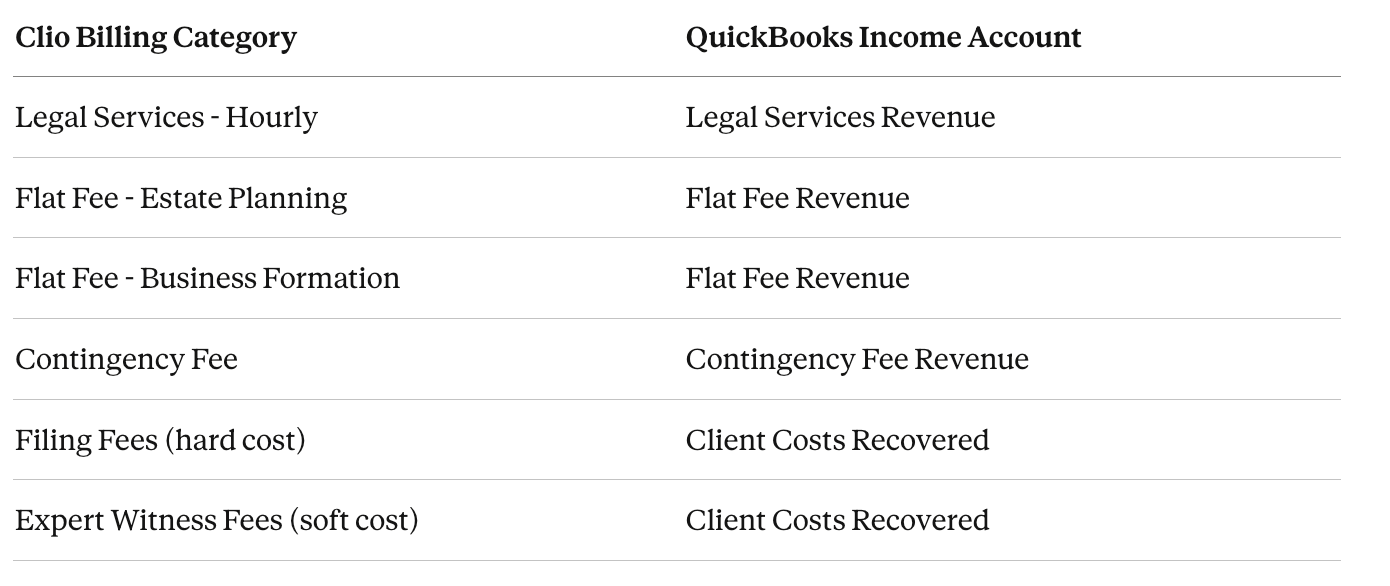
Once the integration is active, pay close attention to how payments and deposits are handled in QuickBooks Online. Clio can sync payment transactions into QuickBooks, while the QuickBooks bank feed separately imports the actual bank activity.
Those transactions need to be matched rather than recorded twice. If a bank deposit includes multiple client payments, the corresponding payments should be grouped into a deposit in QuickBooks before matching. Otherwise, duplicate entries can overstate income and create reconciliation problems.
Trust Accounting Configuration: Where Integrations Fail
Here's what the integration handles and what it ignores:
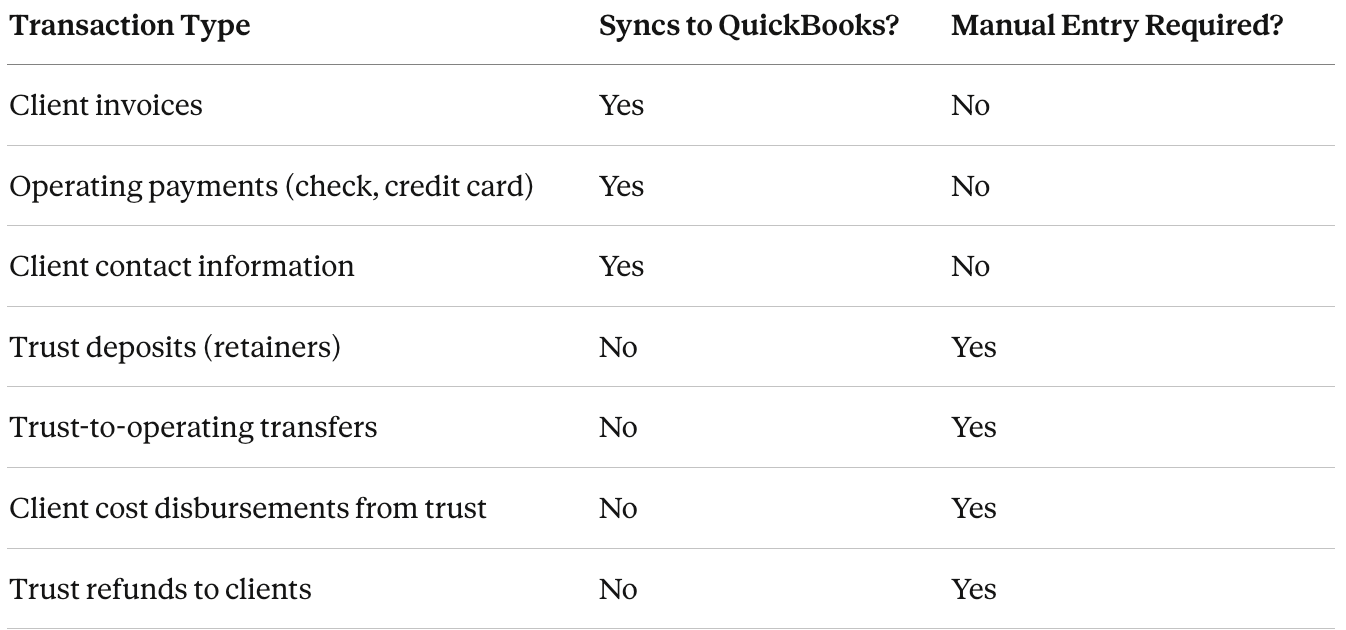
Every "No" in that middle column is a potential failure point.
Trust deposits allocated to the wrong client
When a retainer arrives, you record it in Clio as a trust deposit to that client's balance. In QuickBooks, the deposit hits your bank feed, and someone categorizes it to the trust liability account.
I have seen firms categorize every trust deposit to the parent liability account without client allocation. The total trust liability looked correct, so nobody questioned it. But the client-level detail was fiction, and when the firm faced a random bar audit, they had client ledger discrepancies totaling thousands in misallocations. Every deposit for eight months had hit the parent account instead of the client sub-account. Reconstructing the correct allocation took weeks.
Trust-to-operating transfers recorded as phantom revenue
When you apply trust funds to pay a client invoice in Clio, the integration sees a "paid" invoice and records a payment in QuickBooks. The default behavior credits your operating bank account and debits accounts receivable.
That's wrong. The money did not materialize from nothing. It transferred from your IOLTA account to your operating account. The correct QuickBooks entry has two parts: a bank transfer (debit operating, credit IOLTA) and a liability reduction (debit trust liability, credit accounts receivable). If your payment method mapping sends trust applications through the standard payment flow, your operating account shows cash that isn't there.
We onboarded a firm last year with thousands in phantom cash. Their QuickBooks operating balance was thousands higher than the actual bank balance because eighteen months of trust-to-operating transfers had been double-counting the cash. The integration was "working." The books were wrong.
The fix: create a separate payment method in Clio for trust applications, and map it to a transfer workflow in QuickBooks rather than a standard payment receipt.
Voided invoices leaving orphaned payments
Void an invoice in Clio after it has synced to QuickBooks and you've created a reconciliation puzzle. Sometimes the void syncs and reverses the QuickBooks invoice. Sometimes it doesn't, and you have an orphaned invoice in QuickBooks that Clio no longer knows about.
Both scenarios create problems if payments were involved. A voided invoice with a recorded payment leaves an unexplained credit balance in A/R. An orphaned invoice that someone manually deletes from QuickBooks—without voiding the associated payment - creates a reconciliation gap that surfaces during month-end close.
The fix: void in Clio first, verify the sync completed, then clean up payment artifacts in QuickBooks. Never delete invoices in QuickBooks that came from Clio. Void them so the audit trail survives.
Duplicate entries from parallel data entry
This happens constantly. A firm enables the integration on a QuickBooks file that already has manually-entered invoices. The integration creates new invoices for the same clients, doubling everything. Or staff enter a transaction in QuickBooks without realizing the sync will create it automatically.
The fix: before enabling integration, clear all open invoices in QuickBooks for clients managed in Clio. Going forward, one rule: invoices originate in Clio, period. Anyone working in QuickBooks needs to know this.
Bank feed conflicts with synced payments
With QuickBooks bank feeds active and the Clio integration running, the same deposit can appear twice - once from the bank feed, once from the synced payment. If someone categorizes the bank feed transaction without matching it to the synced record, you've double-booked the revenue.
The accounts might still reconcile to the bank. But your A/R aging shows mysterious credits, and your revenue-by-client reports are overstated. These errors hide until someone digs into the detail.
The fix: train anyone working in QuickBooks to use the "match" function for bank feed transactions that correspond to Clio payments. Match, don't categorize independently.
Does the Clio Integration Handle Trust Accounting in QuickBooks?
Yes. The current Clio Manage + QuickBooks Online integration can sync trust activity from Clio to QBO.
When trust transaction syncing is enabled, Clio can export trust deposits, trust disbursements, and applied trust funds using the QuickBooks trust bank and trust liability accounts selected in the integration settings.
The integration works at the trust-account level rather than creating or maintaining individual client trust-liability subaccounts in QuickBooks. Client- and matter-level trust detail remains in Clio.
What the integration does not replace is the reconciliation process. A law firm still needs to compare the trust bank records, the accounting balance, and the individual client or matter trust ledgers and investigate any differences.
Accounting Atelier supports law firms using Clio Manage + QuickBooks Online with trust-account bookkeeping and monthly three-way reconciliations. For a deeper explanation of how those three balances should tie together, see our guide to three-way reconciliation for law firms.
Integration Settings That Actually Matter
Once Clio Manage and QuickBooks Online are connected, a handful of settings have an outsized impact on how cleanly the accounting data moves between the two systems.
Approved bills and recorded payments
Clio billing items should be mapped to the appropriate QuickBooks Products and Services before bill syncing is enabled. Those Products and Services, in turn, should point to the correct accounts in the QuickBooks chart of accounts.
Once the sync is active, approved bills and associated contacts sync automatically. Clio currently states that contacts and bills sync every 30–60 minutes.
The important accounting question is not only whether the bill reached QuickBooks. It is whether the item mapping sends the revenue to the correct account and whether later payments are being matched to the transaction that already exists in QBO.
Trust transactions and check printing
Trust syncing is configured separately from bill syncing.
For each connected Clio trust account, select the corresponding QuickBooks trust bank account and trust liability account, along with the date from which trust transactions should begin exporting.
That start date matters. If historical trust activity is already recorded in QuickBooks Online, starting the export too early can create duplicate transactions or balances that no longer agree with the bank and the client trust records.
Contacts
Contacts associated with synced activity can move between Clio and QuickBooks Online, and updates to connected contacts are bidirectional.
Before enabling the integration on an established file, review existing client and customer records for duplicates or inconsistent naming. Small contact differences can make the books harder to review even when the underlying accounting transaction is correct.
Hard costs
When the feature is available and enabled, eligible Expense and Check transactions entered in QuickBooks Online can be imported into Clio as hard costs.
This is one area where the firm's existing client-cost workflow matters. Before turning it on, decide which expenses should be tracked in Clio, how those costs are handled in QBO, and who is responsible for reviewing imported expenses so costs are not duplicated or assigned to the wrong matter.
QuickBooks Online Essentials does not support the integration's hard-cost import feature.
Sync errors
If something stops syncing, do not recreate the transaction in QuickBooks simply because it is missing.
Start in Clio Manage → Settings → Bill Syncing and review the sync status and reported error. Clio documents issues such as duplicate document numbers, deleted QuickBooks records, missing account mappings, inactive users, unsupported plan features, and temporary QuickBooks service problems.
Fix the reported sync issue first. Manually recreating a bill, payment, or trust transaction before understanding why the original did not sync can turn one integration error into a duplicate-entry problem.
The best Clio–QuickBooks setup is not the one with the most features turned on. It is the one where each enabled feature has a defined accounting purpose, a correct mapping, and a clear owner responsible for reviewing the resulting books.
What Should I Look for in a Bookkeeper Who Handles Clio and QuickBooks?
A bookkeeper working with Clio and QuickBooks Online should understand more than how to connect the integration. They need to understand how the accounting moves between the systems and how to tell when it is wrong.
Look for someone who can explain:
which transactions originate in Clio and which belong in QuickBooks Online;
how Clio billing items map through QuickBooks Products and Services to the chart of accounts;
how invoices, payments, contacts, and trust activity sync;
how to choose the correct sync start date when QBO already contains historical transactions;
how to investigate failed syncs and duplicate transactions instead of creating workarounds that make the books harder to reconcile;
how Clio's client- and matter-level trust records relate to the trust bank and liability balances in QuickBooks; and
how the firm's month-end process ties the bank activity, QBO accounting records, and Clio records together.
For firms that hold client funds, experience with trust-account bookkeeping and three-way reconciliation is particularly important. The integration can move trust transactions between Clio and QuickBooks, but the bookkeeper still needs to understand how those records should reconcile and how to investigate differences when they do not.
Accounting Atelier specializes in bookkeeping for law firms and uses QuickBooks Online as its accounting platform, with Clio as one of its core practice-management platforms. Accounting Atelier is Clio Certified and supports law firms in maintaining accurate trust-account records and completing monthly three-way reconciliations.
If your firm already uses Clio and QuickBooks Online but the two systems no longer agree, the issue may be more than an integration setting. Historical duplicates, incorrect mappings, trust-account differences, or prior bookkeeping entries may need to be corrected before the ongoing workflow can be fixed.
What the Integration Still Does Not Replace
A well-configured Clio–QuickBooks integration can reduce duplicate data entry and keep billing, payments, and trust activity moving between systems. It does not replace the bookkeeping process around that data.
The integration cannot decide whether:
the chart of accounts is structured appropriately for the firm;
a transaction has been posted to the correct income, expense, asset, or liability account;
a payment or deposit has been duplicated;
a bank-feed transaction should be matched to an existing Clio-created transaction or recorded separately;
a trust difference is a timing issue, a posting error, or a problem in the underlying client ledger;
an old invoice, payment, or journal entry should be corrected before the current books can be reconciled; or
the financial statements accurately reflect what happened during the month.
Those decisions still require accounting review.
The integration also does not complete the month-end close
Even when Clio and QuickBooks are syncing correctly, QuickBooks Online still needs to be reviewed and reconciled.
That typically means reviewing bank and credit-card activity, clearing duplicate or unresolved transactions, confirming that synced payments and deposits were recorded correctly, reviewing balance-sheet accounts, and resolving differences before the financial statements are finalized.
For law firms holding client funds, the trust records require an additional layer of review. The bank records, accounting balance, and individual client or matter ledgers need to agree through the firm's three-way reconciliation process.
A clean integration cannot fix bad historical data
Sometimes the integration is working exactly as configured, but the two systems still do not agree.
That can happen when historical invoices were entered differently in Clio and QBO, payments were duplicated, trust transactions were recorded manually in one system but not the other, mappings changed over time, or prior bookkeeping entries were incorrect.
In those situations, changing the integration settings alone will not fix the books. The historical records may need to be traced and corrected before the ongoing workflow can work properly.
Accounting Atelier handles both ongoing bookkeeping for law firms and trust-account cleanup when the problem extends beyond the current month's sync.
The goal is not merely to have Clio and QuickBooks connected. It is to have the practice-management records, accounting records, bank activity, and trust records agree with one another so the firm can rely on the books.
How Accounting Atelier Works with Clio + QuickBooks
Accounting Atelier works with law firms using Clio Manage + QuickBooks Online, with QBO serving as the accounting system and Clio serving as the practice-management source for billing, payments, and client or matter trust activity.
Our work is focused on the accounting side of that relationship: making sure the transactions moving between the systems are recorded correctly, the QuickBooks file is structured appropriately, and the monthly books agree with the underlying Clio and bank activity.
Depending on the firm's needs, that can include:
reviewing Clio–QuickBooks integration settings and account mappings;
identifying duplicate, missing, or incorrectly synced transactions;
correcting accounting issues created by prior integration settings or historical entries;
completing ongoing monthly bookkeeping in QuickBooks Online;
reviewing trust bank and trust liability activity; and
completing monthly three-way reconciliations for firms that hold client funds.
For a new connection or corrections to an existing setup, explore Accounting Atelier’s Clio and QuickBooks accounting setup services
Accounting Atelier is Clio Certified and specializes in bookkeeping for law firms. We use QuickBooks Online as our accounting platform and work with Clio as one of our core practice-management systems.
If your Clio and QuickBooks records are already out of balance, the first step may be trust-account cleanup or correction of the historical bookkeeping before the ongoing monthly process can be put in place.
The goal is a bookkeeping system where Clio and QuickBooks are not merely connected, but where the accounting records can be reviewed, reconciled, and maintained month after month.
Amy Coats is the founder of Accounting Atelier. She has 25+ years of accounting and financial-management experience, with specialized expertise in law-firm bookkeeping. Accounting Atelier specializes in bookkeeping for law firms, uses QuickBooks Online as its accounting platform, and works with Clio, MyCase, and CosmoLex as core practice-management platforms. Accounting Atelier is Clio Certified and a MyCase & CosmoLex Partner.
Frequently Asked Questions About Clio and QuickBooks Online
-
Yes. Clio Manage integrates with QuickBooks Online and can sync approved bills, recorded payments, contacts, trust transactions, and certain expense data depending on the features enabled.
Clio currently supports QuickBooks Online Essentials, Plus, and Advanced. Simple Start is not supported.
-
Yes.
For firms using Clio Manage + QuickBooks Online, Clio can maintain the client- and matter-level trust activity while QuickBooks Online maintains the connected trust bank and trust liability accounts.
When trust transaction syncing is enabled, Clio can export trust deposits, trust disbursements, and applied trust funds using the trust bank and trust liability accounts selected in the integration settings.
The integration itself does not replace the firm's three-way reconciliation process.
-
No. The Clio integration itself does not require or populate client-level QuickBooks trust-liability subaccounts.
Whether a firm uses client-level QBO subaccounts should be based on its accounting workflow and applicable trust-recordkeeping requirements. Client- and matter-level trust activity can remain in Clio while QBO maintains the corresponding trust bank and trust liability balances.
-
Not necessarily.
A firm using Clio Accounting can maintain a chart of accounts and general ledger, reconcile operating and trust accounts, and produce core financial reports within Clio.
A firm using Clio Manage + QuickBooks Online keeps QBO as its accounting system and uses the integration to move configured Clio activity into it.
Accounting Atelier prefers QuickBooks Online for ongoing law-firm bookkeeping because it provides a more complete accounting environment and greater flexibility for bookkeeping, review, and financial reporting.
-
In Clio Manage, go to Settings → Bill Syncing → Connect to QuickBooks and authorize the QuickBooks Online account.
Before turning on the sync, review:
the QuickBooks chart of accounts;
Products and Services;
bank and trust accounts;
existing invoices, payments, and historical activity;
Clio billing-item mappings; and
the dates from which bills, payments, and trust transactions should begin syncing.
The connection itself is only one step. The accounting structure and sync starting point should be reviewed before Clio begins sending transactions into an existing QuickBooks file.
-
Start by choosing the correct export start dates when connecting an existing QuickBooks file.
If an invoice, payment, or trust transaction already exists in QBO and Clio exports the same activity again, the books can contain duplicate or conflicting records.
After the integration is live, transactions exported from Clio that later appear in the QuickBooks bank feed should be matched to the existing QBO transaction when appropriate rather than entered again.
If Clio reports a sync error, investigate the error before manually recreating the transaction.
-
Start in Clio Manage → Settings → Bill Syncing and review the sync status and reported error.
Problems can result from issues such as:
duplicate document numbers;
deleted QuickBooks records;
missing or incorrect account mappings;
inactive users;
unsupported QuickBooks plan features; or
temporary QuickBooks service problems.
Resolve the reported sync issue before entering the transaction manually in QBO. Otherwise, the original transaction may sync later and create a duplicate.
-
Clio documents how to connect the platforms, but the accounting setup involves more than authorizing the integration.
Someone still needs to decide how the QuickBooks chart of accounts should be structured, how Clio items should map into QBO, which trust accounts should be connected, when the sync should begin, and how existing transactions should be handled.
For an established firm, those decisions become more important because the QuickBooks file may already contain historical invoices, payments, trust activity, and prior bookkeeping entries.
A bookkeeper experienced with Clio + QuickBooks Online should also know how to investigate failed syncs, duplicate transactions, trust-account differences, and historical records that no longer agree.
Accounting Atelier specializes in bookkeeping for law firms, uses QuickBooks Online as its accounting platform, and is Clio Certified.